What you need before you start:
- A desktop or laptop with a keyboard (mobile is not recommended; the game relies on full keyboard controls)
- An up-to-date browser with WebGPU support; Chrome or Edge work best
- A folder with compatible Cricket 07 game files, which the launcher will ask you to select
- A stable internet connection
Step 1: Launch the Game
- Open play.cricket07.in in your browser.
- When the launcher asks, select the folder containing your compatible game files. The launcher reads the files from your device to run the game in the browser.
- Choose your edition: Regular or Lite (see the comparison below).
- Wait for the game to load. Loading screens are normal on the first launch; don't refresh the page while the launcher is working.
- Once the game screen appears, click once inside the game canvas. This gives the browser keyboard focus; without that click, your arrow keys and shot buttons won't register.
That single click is the most common fix for "my keyboard isn't working." Make it a habit every time the game loads.
Regular vs Lite: Which Edition Should You Pick?
Both editions run the same Cricket 07 gameplay. The difference is audio:
| Feature | Regular Edition | Lite Edition |
|---|---|---|
| Commentary (Richie Benaud & Mark Nicholas) | ✔ Included | ✘ Not included |
| Soundtrack | Full | Reduced |
| Gameplay | Full | Full |
| Best for | The complete original experience | Faster loading, less audio |
If you want the iconic commentary that defined Cricket 07, pick Regular. If you just want to get into a match quickly, Lite is the lighter option. You can check the current edition options on the game page.
Step 2: Get Through the Menus
Cricket 07's menus use the keyboard, not the mouse:
- Arrow keys – move between menu options
- S – select/confirm
- W – go back
From the main menu, choose Play Now for a quick exhibition match – the best place to start if this is your first game.
Step 3: Team Select – Assign Your Side (and Why "Continue" Is Greyed Out)
This is the screen that confuses almost every new player. On Team Select you'll see a P1 keyboard icon sitting in the centre between the two teams. Until you move it onto a team, the game doesn't know which side you're controlling – and Continue stays greyed out.
- Press the left or right arrow key to slide the P1 icon toward the team you want to play as.
- Leave any unused P2 icon in the centre. An icon in the centre is unassigned – the other team automatically becomes the CPU opponent. You do not need a second controller or a special "vs CPU" button.
- Once Continue lights up, press S to confirm.
If Continue still won't activate, click inside the game screen to restore keyboard focus and check your P1 icon again.
Step 4: Set Up Your First Match
For your first game, keep it short:
- Choose an exhibition match rather than a tournament.
- Pick your teams and venue.
- Set the match type to Limited Overs and the match length to 5 overs – long enough to learn the controls, short enough that mistakes don't cost you an hour.
- Confirm the toss, conditions and line-up prompts with S.
Once you're comfortable, move up to 10 or 20 overs, then try the tournament modes – The Ashes, World Championship and Knockout Trophy.
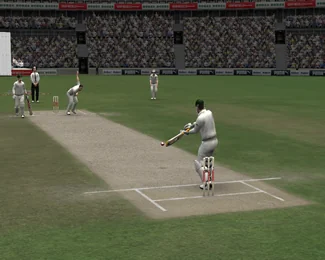
Step 5: Batting Basics
Batting in Cricket 07 is about matching your shot to the delivery, not swinging at everything:
- Front foot strokes: ↑ + ←/→ – for fuller deliveries
- Back foot strokes: ↓ + ←/→ – for short-pitched balls
- Lofted shots / sixes: hold Shift + an arrow key – high reward, high risk
- Advance down the pitch: D or W before the delivery
- Defensive push / leave: arrow key without Shift
Beginner tips:
- Watch the bowler's pitch marker – it tells you the line and length before the ball is bowled.
- Play defensively for the first over while you learn the timing.
- Look at the field before attacking. Aim lofted shots at gaps, not fielders.
- Build your innings with singles; don't try to hit a six every ball.
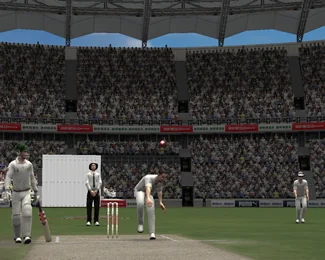
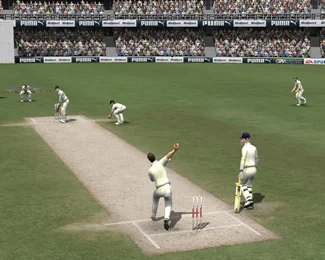
Step 6: Bowling Basics
When it's your turn with the ball:
- Move the pitch marker with the arrow keys to set your line and length.
- Press S for a standard delivery, or D / A for swing, seam and cutter variations.
- Time the delivery meter with Space / the action key for accuracy.
- Switch field presets with number keys 1–9 to match your bowling plan.
Vary your deliveries – if you bowl the same line and length every ball, the CPU batsmen will punish you. Mix pace, swing and the occasional yorker, and set a field that covers the batsman's favourite scoring areas.
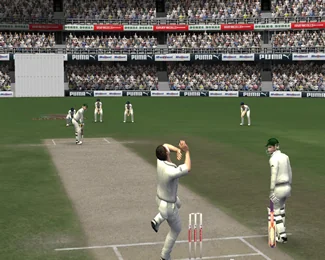
Step 7: Running Between the Wickets
- Take a run / call a single: D or Space
- Cancel the run and turn back: S
- Dive into the crease: W
- When fielding, throw to the keeper's end with D or the bowler's end with S
Cancel early if a run looks tight – a dive (W) can save you from a run-out, but judgement saves more wickets than dives do.
Playing 1v1 Multiplayer Online
Cricket 07 on Cricket07.in isn't just solo play. Where the 1v1 option is available on the game page:
- One player creates a room and receives a room code.
- Share the room code with your friend.
- Your friend enters the code to join the match, then follow the on-screen instructions.
Multiplayer performance depends on both players' connections and the active game build, so a stable connection matters more here than anywhere else.
Saving Your Game
Don't lose your tournament progress – use the save interface before closing the tab:
- Save type: Shift + Space
- Name a save: Enter
- Delete a save: D. Be careful with this one; check the on-screen instructions before deleting anything
Your progress is tied to this browser on this device, so avoid clearing your browser's site data if you want to keep your saves.
Quick Troubleshooting
- Black screen or game won't load: enable hardware acceleration in your browser settings and whitelist play.cricket07.in in any ad-blocker.
- Keys not responding: click once inside the game canvas.
- No sound or commentary: click anywhere on the game screen; browsers block audio until you interact with the page.
- Playing on mobile: the site loads, but Cricket 07 was built for a keyboard. Use a desktop or laptop for the real experience.
Frequently Asked Questions
How do I play Cricket 07 without downloading it?
Open play.cricket07.in in a desktop browser, select your compatible game folder when the launcher asks, and the game runs directly in the browser; no traditional installation needed.
Why can't I select my team in Cricket 07?
The P1 keyboard icon is still in the centre of the Team Select screen. Press the left or right arrow key to move it onto the team you want to control, then press S.
How do I play against the computer?
Assign only your P1 icon to one team and leave everything else in the centre. The unassigned team is automatically controlled by the CPU.
What are the basic controls?
Arrow keys for shot direction and the pitch marker, S to confirm and bowl standard deliveries, Shift + arrows for lofted shots, D/Space to run. See the full Controls Guide for everything.
Can I play Cricket 07 with a friend online?
Yes, the game page lists a 1v1 option. Create a room, share the room code, and your friend joins with it.
What's the best match setup for beginners?
A 5-over Limited Overs exhibition match. It's quick, low-pressure, and perfect for learning the batting and bowling timing.