This page covers everything about multiplayer: what the original game offered, how the online 1v1 works, setting up your first match, keeping it lag free, and fixing the common connection problems.
Did the Original Cricket 07 Have Online Multiplayer?
No, and this is worth understanding because it is what makes the browser version special. When EA released Cricket 07 in 2006, multiplayer meant two people at the same machine. There was no online mode on PC, so playing a friend meant sitting in the same room.
That is why "Cricket 07 online multiplayer" was never really possible for the first two decades of this game's life. The browser version adds it: the 1v1 room system connects two players over the internet, each on their own computer, playing the same classic game. If you grew up trading overs with a sibling on one keyboard, this is that experience without needing to share a desk.
What Both Players Need
Multiplayer has the same requirements as solo play, doubled:
- Each player needs a desktop or laptop with a keyboard. The game's control scheme does not work on phones, so a friend on mobile cannot join properly.
- Each player needs an up to date browser with WebGPU support. Chrome or Edge are the safe picks.
- Each player needs their own compatible game files. The launcher asks every player to select their game folder, the same as solo play. If your friend does not have the game files, point them to our download guide for what the launcher needs and the legitimate ways to get a copy.
- A stable connection on both sides. Online cricket is turn based in feel but real time in execution, so a shaky connection on either end affects both of you.
Run through the setup once in solo play before your first online match. A player who has already fixed their hardware acceleration and keyboard focus (both covered in the Troubleshooting guide) will not spend the first fifteen minutes of a multiplayer session debugging.
How to Create a Room
Where the 1v1 option is available on the game page:
- Open play.cricket07.in and load your game as usual.
- Choose the 1v1 multiplayer option on the game page.
- Select create a room. The game generates a room code for your session.
- Share the code with your friend over any chat app. The code is what connects their session to yours, so send it exactly as shown.
- Keep the tab open and wait for your friend to join. Creating a room and then wandering off to other tabs is how sessions get dropped before they start.
Room codes are tied to the session. If a match falls apart or a join fails, create a fresh room and share the new code rather than retrying a stale one.
How to Join a Room
For the second player:
- Open play.cricket07.in and load your game files the same way as solo play.
- Choose the 1v1 multiplayer option, then the join option.
- Enter the room code your friend sent you, exactly as received.
- Follow the on-screen instructions to connect to the match.
If the join fails, do not hammer the same code. Ask your friend to create a new room, take the fresh code, and try again. Both players should also confirm they are on the quick checklist from the troubleshooting guide: hardware acceleration on, ad-blocker whitelisting play.cricket07.in, and a click inside the game screen for keyboard focus.
Setting Up the Match
Once connected, you set up the match through the game's own screens, the same menus solo players use. A few things matter more in multiplayer:
- Each player controls their own side. Follow the on-screen prompts to take your team. If you have only ever played solo, remember the Team Select screen assigns inputs to teams, and the How to Play guide explains that screen in detail.
- Agree the format before you start. A 5 over match finishes in a reasonable sitting and is the right length for a first online game. Save the 20 over epics for when you both know the connection holds.
- Know your controls cold. Online, there is no pausing to look up which key plays a lofted shot while your friend waits. The full key reference is in the Controls Guide, and the quick table there is worth keeping open on a second screen for your first match.
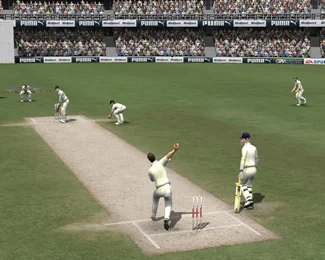
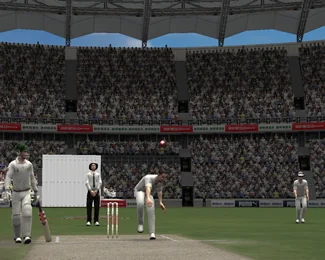
Keeping Matches Smooth: Connection Tips
Multiplayer performance depends on the active game build and both players' connections. Stack the odds in your favour:
- Wired beats wireless. An ethernet cable on either side noticeably steadies things. Strong Wi-Fi is fine, a mobile hotspot is asking for trouble.
- Close the heavy stuff. Video calls, streaming tabs and downloads on either machine compete with the game for bandwidth and processing.
- Avoid VPNs and restricted networks. VPNs add latency and office or school networks can block the connection between players outright. A home connection without a VPN is the reliable setup.
- Both players plug laptops into power. Battery saving modes throttle performance mid match.
- Play geographically sensible matches. Two players in the same country will always have a smoother match than opposite sides of the planet. It still works at distance, just expect more latency.
Playing Two Player on One Computer
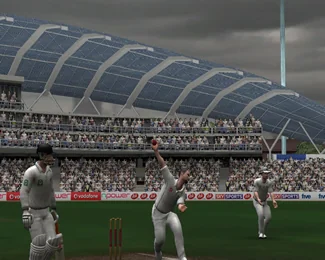
Prefer the old school way? The original game supported two players at a single machine with separate input devices, which is how most people played Cricket 07 multiplayer back in the day. On the Team Select screen, each player assigns their own input to a team instead of leaving the second side to the CPU.
It is a different experience from online play: zero lag, maximum trash talk, one shared screen. If you have a friend on the same sofa and a second input device, it remains a great way to play. For everyone else, the room code system exists precisely so the sofa is optional.
Multiplayer Problems and Fixes
The connection focused fixes live in the Troubleshooting guide, but here is the multiplayer specific shortlist:
- Join fails or the room is not found: create a fresh room, share the new code, both players retry. Codes are session bound.
- Match drops mid game: one side's connection blipped. Create a new room and agree a shorter format for the rematch.
- One player lags, the other is fine: the problem is on the lagging player's side. That player should close background apps, switch to wired or stronger Wi-Fi, and confirm hardware acceleration is on.
- Keys stop responding mid match: that player clicked outside the game. One click inside the game screen restores focus.
- It worked yesterday and not today: networks change. Check for a VPN that switched on, a hotspot instead of home Wi-Fi, or a big download running in the background.
Multiplayer Etiquette
Unwritten rules that keep online cricket fun:
- Finish the match. Quitting the moment you lose three quick wickets is the fastest way to run out of opponents.
- Agree the format up front and stick to it.
- Rematches settle everything. Best of three is the traditional format for settling who actually is better at this game.
- Do not pause endlessly. Grab your drink between overs like a professional.
Frequently Asked Questions
Can you play Cricket 07 online multiplayer?
Yes, in the browser version. The game page at play.cricket07.in lists a 1v1 option where one player creates a room, shares the room code, and the other player joins with it. The original 2006 release had no online mode, so this is specific to the browser version.
How do I play Cricket 07 with a friend?
Both of you open play.cricket07.in with your game files ready. One creates a room through the 1v1 option and shares the generated code, the other chooses join and enters it, then you set up the match through the game's normal screens.
Can I play against random opponents?
Matches are set up through room codes, so you play against someone you share the code with. There is no public matchmaking queue, which also means no quitters and no strangers, just whoever you invite.
Do both players need the game files?
Yes. Each player's launcher runs from their own folder of compatible game files, exactly like solo play. Our download guide explains what the launcher needs.
Can my friend join from a phone?
No. The game needs a keyboard and a desktop browser on both sides. The site loads on mobile, but the controls do not work there.
Why does my multiplayer match lag?
Usually one player's connection or machine. Wired or strong Wi-Fi, no VPN, no hotspot, background apps closed and hardware acceleration on fixes the vast majority of lag.
Is Cricket 07 multiplayer free?
Yes. There is no payment or registration on Cricket07.in. You need your own game files, a desktop browser and a friend with the same.
Can two people play on one computer instead?
Yes, the original game supported two players at one machine with separate input devices, assigned to opposite teams on the Team Select screen. The online 1v1 exists for everyone who is not in the same room.